Git Merge Conflicts
Ignition stores Python scripts inside JSON resources as encoded string values, so a Git merge conflict in a Perspective view or event script shows up as two unreadable blobs between conflict markers. Flint detects these conflicts, decodes both sides, and lets you compare and resolve them as plain Python code.
Works completely offline. No gateway connection or Designer Bridge module is required — only a JSON file containing Git conflict markers.
Detecting script conflicts
When you open a JSON file that contains merge conflict markers around an encoded script field (a "script" or "code" key), Flint automatically adds a Code Lens above each conflict:
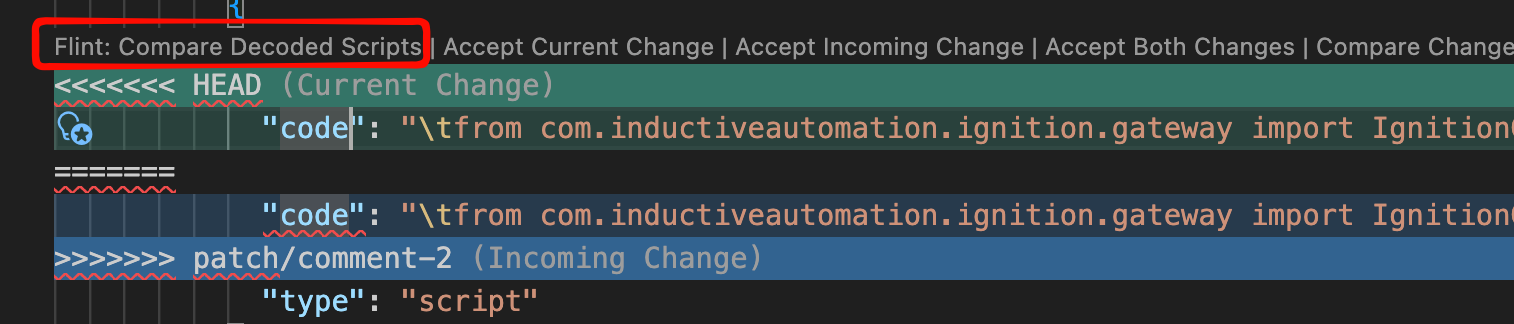
Click Flint: Compare Decoded Scripts to open the merge editor for that conflict. You can also run Compare Decoded Scripts (flint.compareConflictScripts) from the Command Palette with your cursor positioned inside the conflict.
The merge editor
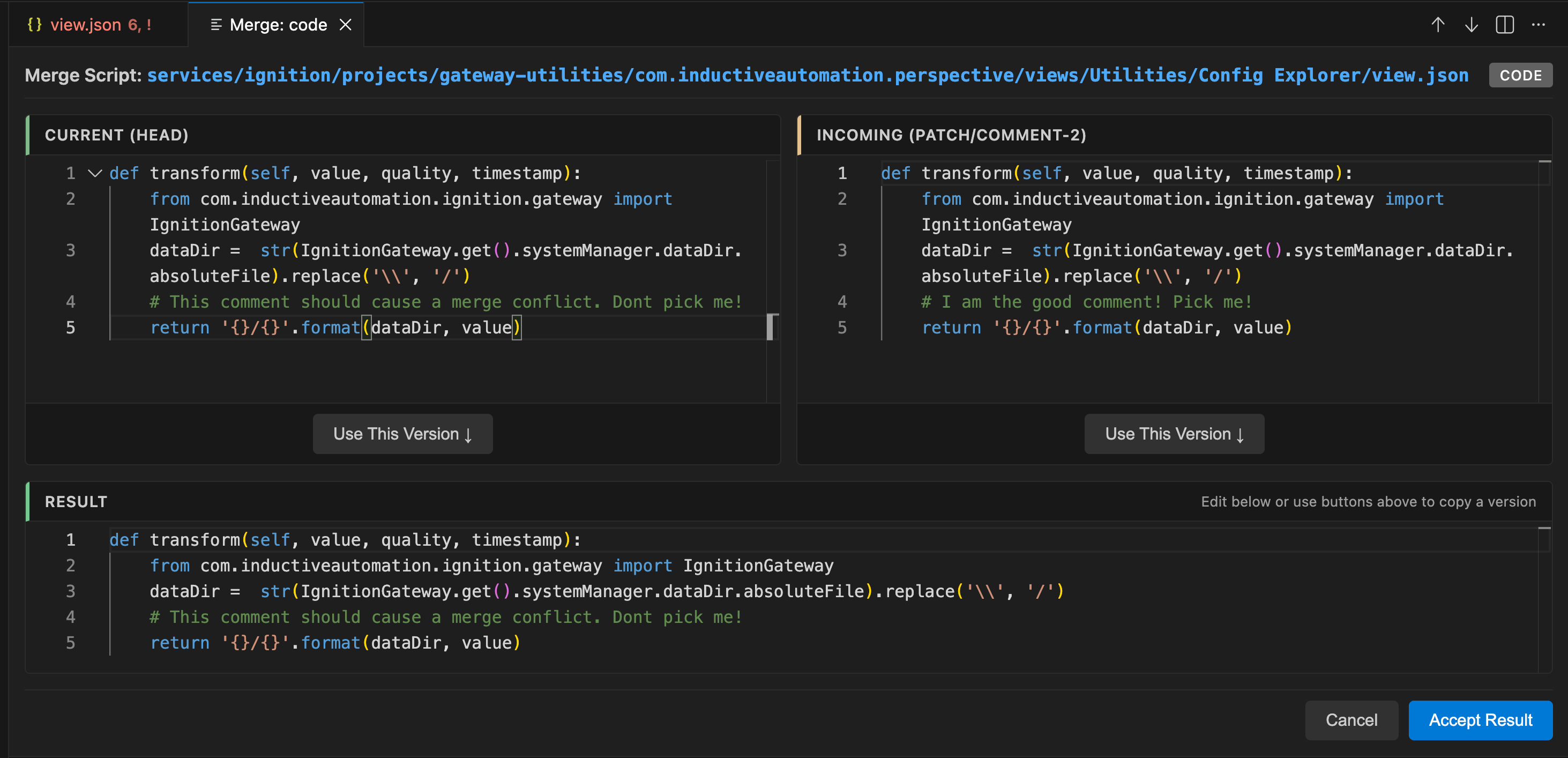
The merge editor presents a three-panel view similar to VS Code's native merge editor, with both sides decoded to Python:
| Panel | Contents |
|---|---|
| Top left (Current) | The decoded script from your current branch (HEAD) |
| Top right (Incoming) | The decoded script from the branch being merged in |
| Bottom (Result) | The merged script that will be encoded and saved |
Features:
- Full Python syntax highlighting in all three panels.
- All three panels are editable.
- A function definition wrapper is shown for context where applicable (for example,
def runAction(self, event):). - The file path is displayed in the header so you always know which resource you are resolving.
- Word wrap toggle for long lines.
Resolving a conflict
You have three ways to build the result:
- Use This Version ↓ — click the button under the Current or Incoming panel to copy that entire script into the Result panel.
- Manual merge — edit the Result panel directly to combine changes from both sides.
- Edit any panel — Current and Incoming are also editable, so you can adjust either side before copying it down.
When the Result panel contains the script you want, click Accept Result. Flint encodes the script, writes it back into the JSON file, and removes the conflict markers for that field.
| Shortcut | Action |
|---|---|
| Ctrl/Cmd+Enter | Accept Result |
| Escape | Cancel |
| Alt+Z | Toggle word wrap |
Accepting one side directly
If you already know which side wins, you can skip the merge editor. When a decoded conflict view is open, the editor title bar shows two buttons:
- Accept Current (Left Side) (
flint.acceptCurrentScript) - Accept Incoming (Right Side) (
flint.acceptIncomingScript)
Either command re-encodes the chosen script and writes it back into the JSON file, replacing the entire conflict block.
- Flint resolves conflicts in single script fields only — conflicts where both sides changed a
"script"or"code"value. Structural JSON conflicts (component additions, property changes, reordered keys) are not handled by the merge editor; resolve those with VS Code's standard merge tools. - The function definition line shown for context (for example,
def runAction(self, event):) must not be modified. If it is changed, Flint reports an error rather than encoding an invalid script. - After accepting a result, the JSON file is updated in the editor but not saved automatically — review the change, then save.
The merge editor preserves the surrounding JSON formatting, including trailing commas, so accepting a result produces a minimal diff.
Related tools
Outside of merge conflicts, Flint provides the same decode/re-encode workflow for everyday editing:
- Embedded script editing — open any encoded script as a real Python document with Ctrl/Cmd+Shift+E; saving re-encodes it.
- Compare Decoded with Git (
flint.compareDecodedWithGit) — diff a script against the version in Git HEAD. Note that the HEAD side of this diff currently shows the encoded string, while the working side is decoded. - Search — search inside decoded script content across your projects.